THE WATCH GUIDE
Find your bearings. Make it yours.
A number catches your eye. Its history helps you understand it. Learn how to organise your watchlist, read the changes and see what was known on a given date.
Take the tour- 01Choose
The indicators that matter to you.
- 02Understand
The change, its period and its source.
- 03Revisit
The release, its revisions and your alerts.
01 / GETTING STARTED
Your first session
The Dashboard shows available data and upcoming releases, even before you make a selection. Select Follow this indicator to find it on your next visit. Explore indicators opens the rest of the catalogue.
On your return, changes appear first: New data for a new period, Revised figure for a period already known. View history opens the detail. Following an indicator does not activate notifications; Set up an alert opens separate settings.
02 / YOUR WORKSPACE
Make Watch your own
- In My watchlist, choose an indicator and select Pin. You can also pin it from its detail view.
- Use the arrows to arrange up to twelve indicators in the order you prefer. Removing one from your watchlist does not delete its history.
- Open a card to explore the detail. For macro series, the cumulative revision relates to the stated period. For rates and spreads, the change compares two periods.
The US employment, Inflation and Interest rates starter selections add several indicators in one click without replacing your choices. They respect the twelve-indicator limit. The My watchlist filter then narrows the calendar, revisions or markets to your selection.
Since my last visit compares your indicators on this browser, separately for each account. The first visit shows the latest data and saves a starting point. Later visits compare values for the same period and unit, within the last twelve available periods. When older values are missing, only a history update is reported. Newly followed indicators are excluded from the comparison. An unavailable source is labelled as incomplete verification, never as an absence of change. The visit date does not replace the official publication date.

03 / READING THE NUMBERS
Read a revision
Start with the number, then check the period beneath it. A new observation for August and a revision to July tell you different things.
Macro source status opens the details for every source in the registry: latest collector run, last successful upstream collection and any earliest retry time. These describe current collection status, even when you are viewing a historical date.
- Latest official value
- The observation for the latest period available in the selected view.
- Cumulative revision
- The revised value minus the first available vintage for the same period. That vintage is not necessarily the statistical agency’s original estimate.
- Effect on the trend
- The effect of revisions on averages over 3, 6 or 12 periods. Watch separates this from the effect of adding a new observation.
04 / DATA HISTORY
Go back in time
- In Revisions or Markets, use Known on this date to choose a day. Watch reconstructs the register as of the end of that day in the Europe/Paris time zone.
- Open Replay · vintages to explore a release. The matrix shows the value known in each available vintage. An empty cell does not mean zero.
- Export the CSV from your selected view. The file retains its reference date and provenance. Return to the latest available view to resume current monitoring.

05 / CALENDAR
Prepare for a release
Filter the calendar by region and topic. Open the official source to check the announcement, or follow the indicator link when one is available. Exact release times are shown in Paris time, including daylight-saving changes.
When the source provides only a usable date, Watch shows no time. This is how the Eurostat calendar is handled. A usual release time is not treated as a confirmed one.
Choose Month or Timeline. Days linked to your indicators are outlined; My watchlist keeps only their events. The month, day, filters and position are retained when you return from a series history.
Calendar .ics downloads an event for your calendar app. A date without a time remains an all-day entry, and a provisional date stays marked as provisional. This is a one-time export: later changes to the official schedule are not synced automatically.
View calendar sources ↗06 / NOTIFICATIONS
Choose your alerts
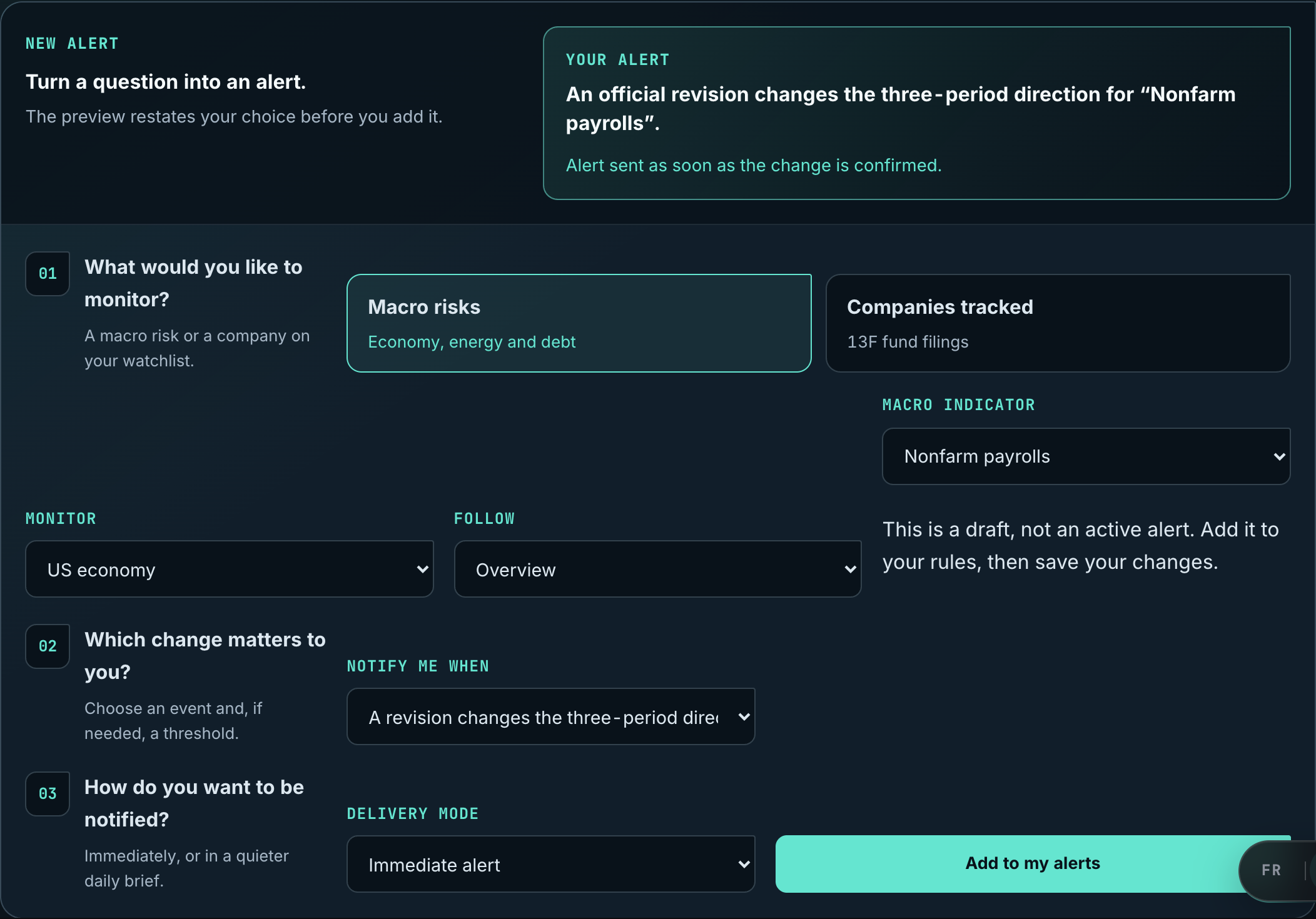
- In Alerts, choose a subject, a trigger and a delivery option. The revision template targets changes in the trend interpretation; it does not fire for every amended value.
- Add the rule, check which delivery channels are enabled, then select Save my alerts. Opening a prefilled rule from a release does not activate it for you.
- Use the history and delivery status to distinguish a detected change from an email that was actually sent. A sent status cannot guarantee delivery to your primary inbox.
07 / TECH RADAR
Monitor Big Tech
Tech radar brings together official filings for a shared selection of companies: Apple, Microsoft, Alphabet, Amazon, Meta, Nvidia, AMD, Broadcom, Micron, Oracle, Palantir, CoreWeave, Tesla, SpaceX. This editorial selection does not represent your holdings and is not a buy recommendation.
- Open Tech radar from the menu or its preview in the Dashboard. Filter by theme, company, publication type and a 30, 90 or 365-day period.
- Read the form and its topic, then open the SEC link to consult the original filing and its exhibits in English. A filing can belong to several categories; it is shown only once.
- Open Companies, source checks and coverage to see the last attempt, the last successful check and the start of available history for each company.
- Results and reports
- 8-K Item 2.02, quarterly 10-Q and annual 10-K reports, including amendments. Watch classifies the filing; it does not calculate earnings surprises, ratios or an expected price response.
- Auditor and non-reliance disclosures
- Item 4.01 concerns an auditor change. Item 4.02 concerns earlier financial statements, audit reports or reviews that should no longer be relied on. The item alone does not establish fraud or its cause.
- Registrations and prospectuses
- Forms S-1, S-1/A and 424B4. Their presence alone does not prove that an IPO or another transaction has completed.
Current limitations
- The radar covers the forms and items above for these 14 US issuers. It does not cover all their news, insider filings, companies outside the selection or European ETF events.
- History is limited to 365 days and the recent list returned by the SEC for each issuer. Actual coverage may be shorter. This radar does not reconstruct historical states as known on a past date.
- A shared collection is scheduled every 15 minutes, with no real-time guarantee. A check older than one hour is marked overdue. An outage or a pause requested by the SEC can delay the snapshot; older filings retain their dates. An empty result does not prove there is no company news.
- Filters remain temporary within this page and reset on reload or language change. No portfolio is recorded. The radar currently sends no email alerts and does not feed the email digest: its preview appears in the Dashboard.
Source: SEC EDGAR API. Public metadata is available free of charge; the SEC allows reuse of public EDGAR content. Reuse terms.
Open Tech radar ↗08 / QUALITY & TRANSPARENCY
Know the limits
Three dates with different meanings
The statistical period tells you what is being measured. The publication date identifies the agency’s release when documented. The collection date tells you when Watch retrieved it. A recent collection does not make an old observation new.
Partial, stale or unavailable
Partial signals a limit in coverage or history. Stale indicates a failed check or insufficient freshness. Unavailable means Watch cannot supply the requested data. None of these states is replaced with zero.
Collection and delivery delays
Watch respects pauses requested by its sources, so data can remain unavailable during a pause. Emails are dispatched gradually: a publication followed by many accounts can take several minutes to distribute. The immediate channel does not guarantee instant receipt.
A change is not a consensus surprise
Watch compares observations, vintages and trends using explicit rules. Without licensed market consensus data, it does not label a difference a market surprise. Market moves shown alongside a release do not establish causation.
Units, adjustments and series breaks
Check the unit and seasonal-adjustment status. A percentage-point difference is not a percentage change. A series break or methodology change may make two observations incomparable: review the Methodology tab.
09 / YOUR ACCOUNT
Your account
The Account page brings together your access, security options and personal data. Use only the payment flows provided by Watch. Never include passwords, sign-in codes or card details in a support message.
The FR / EN switch keeps your current page and macro-view filters. Tech radar’s temporary filters reset on language change. Use the theme button to switch between dark and light. When reporting a problem, include the page, indicator or company and displayed date, and hide personal details in screenshots.
Open my account ↗